
Sending a PayItMonthly PayLink turns a stalled sale into a signed finance agreement without anyone touching a card machine or a credit application form by hand. Instead of taking payment details over the phone or watching a customer abandon your checkout because the full price scares them off, you generate a PayLink in the merchant portal and let the customer finish the application and sign on their own device.
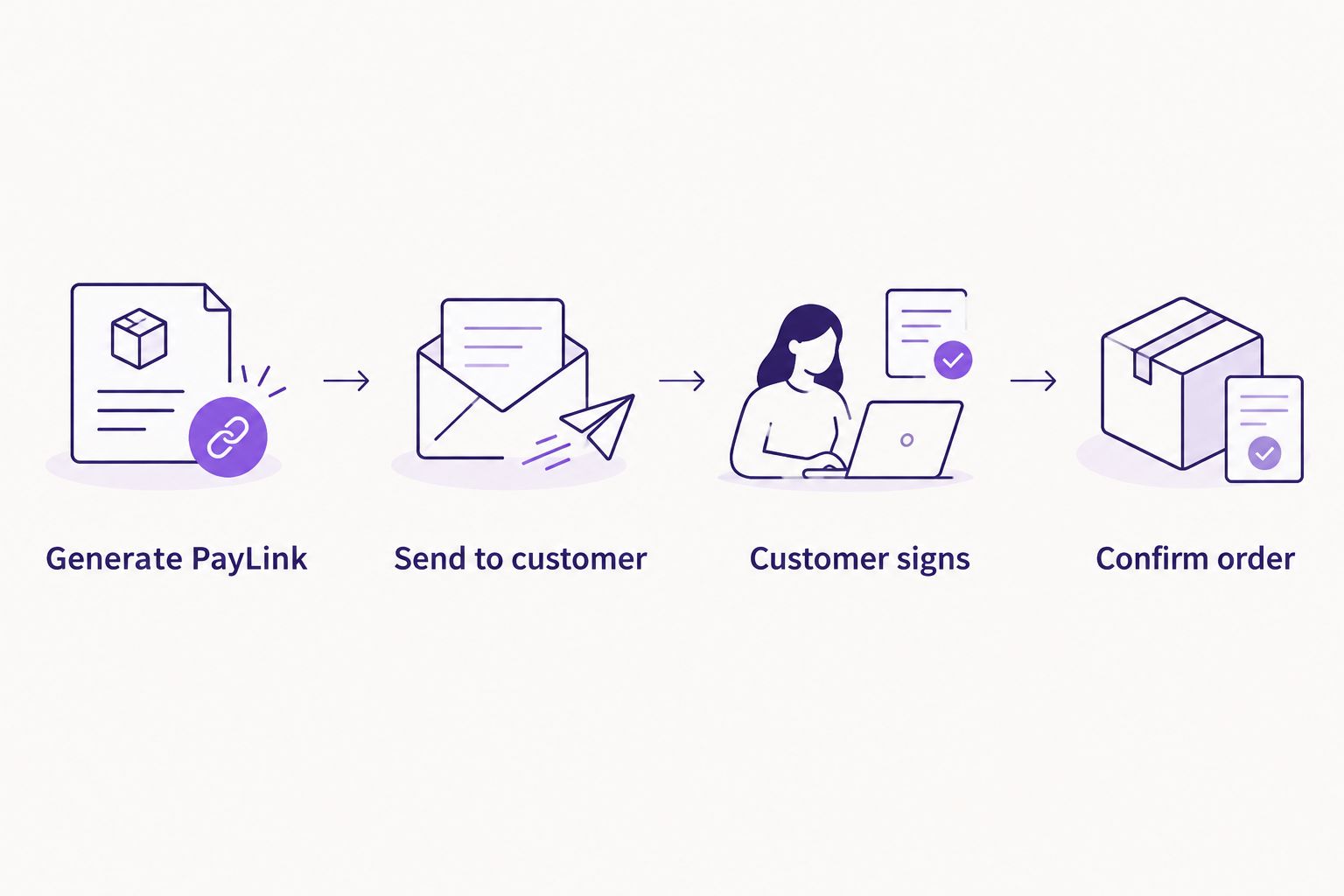
- Sending a PayItMonthly PayLink means logging the order, entering the customer's contact details and order value, then clicking Send.
- The customer completes the application and signs the agreement remotely — you never collect card or bank details yourself.
- PayLink works for website checkouts, phone sales and accepted quotes; set it to fire automatically once a quote is marked accepted.
- The most common setup mistake in 2026 is sending the wrong order value — fix the amount before sending, not after the customer starts applying.
- Pair a manually sent PayLink with automatic re-offers on abandoned checkouts to recover sales that would otherwise be lost.
Why this matters
A customer who wants to spread a purchase into interest-free monthly instalments but can't finish the process there and then usually doesn't come back. Phone sales, trade counter quotes and abandoned online checkouts all share the same problem: the moment of interest passes before the paperwork catches up.
A PayItMonthly PayLink closes that gap. It's a link you generate against a specific order and send to the customer, who applies and signs without you re-entering their details or chasing a card number down a phone line. For a buy now pay later provider, that's the entire point of the tool — remove the friction between "I want this" and "it's paid for."
This guide covers the manual send from your merchant portal, the automated version that fires when a quote is accepted, and the fixes for the handful of things that actually go wrong in a 2026 PayLink setup.
Before you start
- Merchant portal access. You need an active PayItMonthly merchant login with permission to create orders — not every staff account has this by default.
- The customer's mobile number or email address, correctly entered. A PayLink sent to the wrong contact detail does not bounce back to you automatically in every case, so double-check it before sending.
- The gotcha: lock the order value before you send. Once a customer has started the application against a PayLink, changing the amount on your side doesn't update what they're applying for — you cancel and resend a fresh link instead of editing the one in flight.
Generate the PayLink
- Log into the PayItMonthly merchant portal and open the New Order or equivalent order-creation screen.
- Enter the customer details — name, email, and mobile number. These three fields are what the PayLink uses to identify the application, so a typo here means the customer gets a link addressed to the wrong name or nothing at all.
- Enter the order value as the final amount the customer is spreading into instalments, inclusive of any add-ons or delivery charges you're financing.
- Confirm the order summary matches what you've agreed with the customer, then select the option to generate PayLink.
Expected result: a unique link tied to that order value and customer record appears in your portal, ready to send.
Send the PayLink to your customer
- Choose how to send it — by email or by text message, depending on which contact detail the customer prefers.
- Click Send PayLink. The system delivers the link directly to the customer; you don't need to copy and paste it into your own messaging app unless you want to add a personal note alongside it.
- Tell the customer, in person or on the call, that the link is on its way and roughly how long the application itself takes to fill in — most customers finish it in one sitting if they have ID and bank details to hand.
Expected result: the order status in your portal changes to reflect that the PayLink has been sent and is awaiting customer action.
Customer completes the application and signs
- The customer opens the link on their phone or computer and enters their personal and affordability details directly into PayItMonthly's application flow — none of this touches your systems or your staff.
- PayItMonthly runs its checks and returns a decision.
- On approval, the customer signs the finance agreement digitally, inside the same flow, without printing anything or visiting your store again.
Expected result: your merchant portal updates the order status to approved and signed, and you're notified that the agreement is in place.
Confirm the order and get paid
- Check the order status in the portal shows as signed before you release goods or book in a service date.
- Fulfil the order as normal — deliver, install, or hand over whatever the customer bought.
- Funds settle to your business account per your merchant agreement; no instalment collection work sits with you from this point on.
Send a PayLink automatically when a quote is accepted
The manual flow above works well for in-store or phone sales where you're creating the order live. For businesses that quote first and sell later — trade installers, clinics, bespoke retailers — sending a finance PayLink automatically the moment a quote is accepted removes a manual step your team would otherwise forget on a busy day.
Instead of a staff member remembering to log into the portal after a customer says yes, the trigger does it for them: quote marked accepted, PayLink generated and sent, no gap for the lead to go cold. This variant suits any business where "accepted" is a distinct, trackable status in your own systems before the sale is fully processed.
“If the order value is wrong on the day, don't edit the PayLink — cancel it and send a fresh one.”
Troubleshooting
- Customer says they never received the PayLink. Check the contact details logged against the order first — a single-digit error in a mobile number or a typo in an email address is the most common cause. Resend using the alternate contact method if you have one on file.
- Application gets declined. This sits with PayItMonthly's affordability checks, not your portal settings. If declines are becoming frequent across your customer base, review how to reduce declined finance applications at checkout for changes you can make on your side.
- Order value was entered wrong. Don't try to correct a live PayLink mid-application. Cancel it in the portal and generate a new one with the right figure.
- Customer starts the application but doesn't finish it. This happens most often when they don't have ID or bank details ready. A quick follow-up text pointing back to the same link usually recovers it, since the link itself doesn't expire the moment they close the tab.
- Signed agreement doesn't show in your portal. Refresh the order status rather than assuming it failed — there's a short processing gap between signature and the status update reaching your dashboard.
Customize your workflow
Once the manual send and the quote-triggered send are both running, the next move is tightening the checkout end so fewer customers ever need a manually sent link in the first place. If you're still building out the on-site option, adding a buy now pay later choice at checkout means most customers never leave your site to apply — PayLink becomes the backup for phone sales and quotes rather than the main route.
For businesses running their own checkout build or a custom platform, connecting PayItMonthly's API to your existing checkout lets you trigger PayLinks programmatically from your own order events instead of the merchant portal UI — useful once volume justifies the engineering time.
Start sending PayLinks today
See how PayItMonthly fits your checkout and sales process.
FAQ
How do I send a PayItMonthly PayLink?
Log into the PayItMonthly merchant portal, create an order with the customer's details and order value, then generate and send the PayLink by email or text. The customer applies and signs on their own device.
Can a PayLink be sent automatically?
Yes — PayLinks can be configured to send automatically when a quote is marked accepted, removing the manual step for businesses that quote before they sell.
What happens if I enter the wrong order value on a PayLink?
Cancel the PayLink in the portal and generate a new one with the correct amount. Editing the amount after the customer has started applying doesn't update what they're applying for.
Does the customer need to visit my site to use a PayLink?
No. The PayLink sends directly to their email or phone and the entire application and signing process happens on their own device, independent of your checkout.
Why would a customer's PayLink application be declined?
Declines come from PayItMonthly's own affordability checks during the application, not from anything set in your merchant portal.
Is sending a PayLink different from adding buy now pay later at checkout?
Yes. An on-site checkout option lets customers apply without leaving your store; a PayLink is sent separately for phone sales, quotes, or customers who didn't finish at checkout.
Can I resend a PayLink if the customer didn't finish applying?
Yes — the same link can typically be followed up on, since it doesn't expire the moment the customer closes the page. A follow-up message with the link is usually enough to recover it.
Do I need technical help to send PayLinks?
No. The manual send through the merchant portal needs no development work; the API route is only necessary if you want PayLinks triggered automatically from your own checkout or order system.
One last thing
The single biggest cause of a failed PayLink isn't the customer's credit — it's a typo in the mobile number or email address at step one. Get your staff into the habit of reading the contact detail back to the customer before clicking send, and most of the "they never got it" tickets disappear before 2026 is out.